This website uses cookies to improve your experience. We'll assume you're ok with this, but you can opt-out if you wish. Read More

This add-on for Live Composer is a new module that lets you easily add Google Maps to your website. Just type in the address and the module will do the rest.
Available Options
- Custom marker image ( upload image )
- Mousewheel zooming ( enable/disable )
- Double-click zooming ( enable/disable )
- Dragging ( enable/disable )
- Map UI ( enable/disable )
- Map Type ( Hybrid/Roadmap/Satellite/Terrain )
- Height ( numeric )
- Map Zoom ( numeric, 1-21 )
There are also the usual styling options in all the modules (borders, padding, backgrounds) and animation options (on-load animations).
Demonstration
Installation
Install it as a plugin and activate it. The module will be available in the modules listing.
Usage
After installation, the plugin adds the Google Maps module in Live Composer.
Get a Google Maps API key.
As of June 22nd, 2016, Google requires you to enter a Google API key (browser key) to show any map on your website. With new restrictions, your website has a free allowance for 25,000 requests per day. It's more than enough for most of the plugin users.
Let's generate a new key for your website.
- Log in to the Google API console by clicking this link to the Google API console
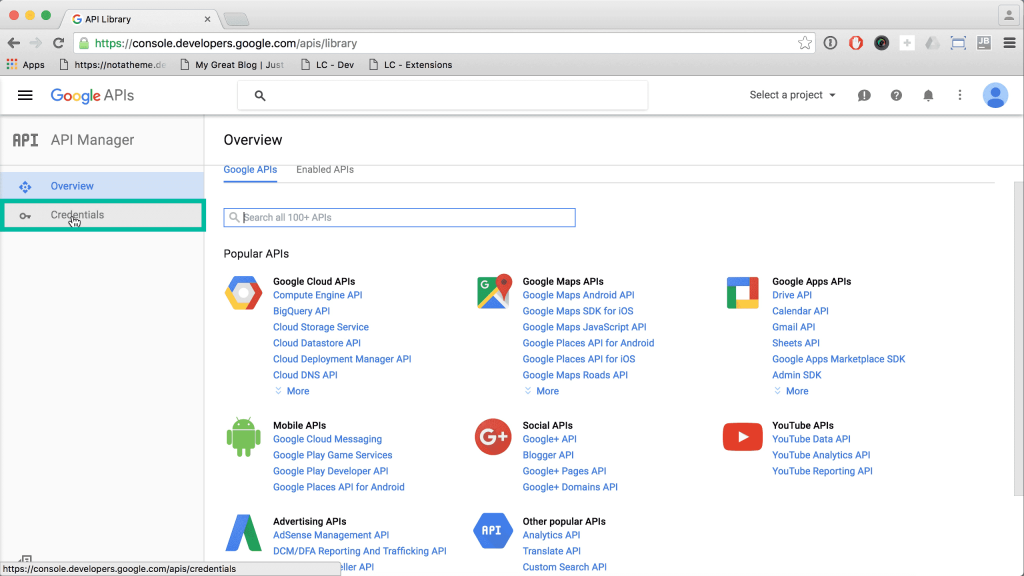
- Click on Credentials in the API Manager sidebar.
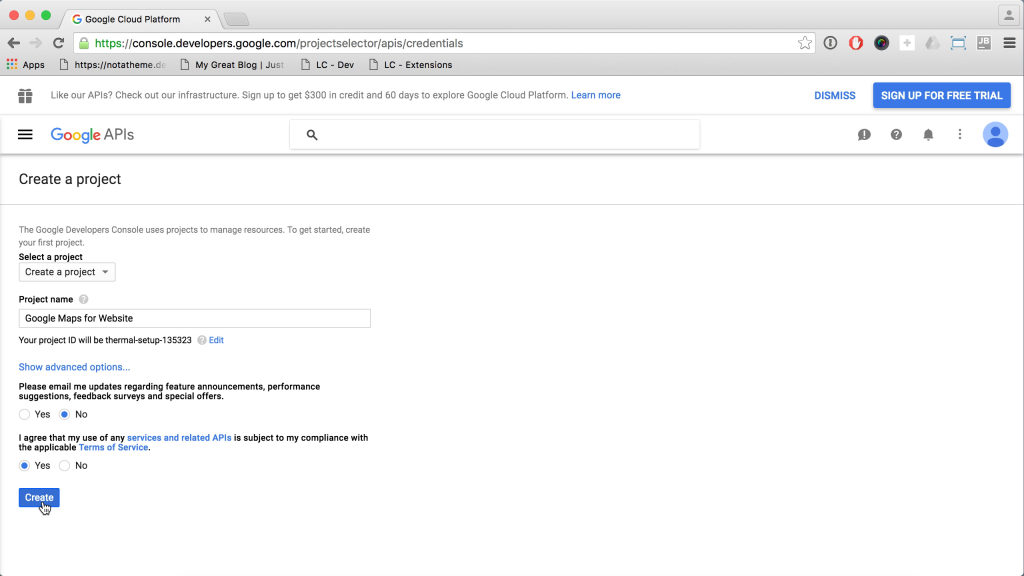
- Enter a descriptive project name and click Create.
- Go back to the Overview section and click on the Google Maps JavaScript API link.
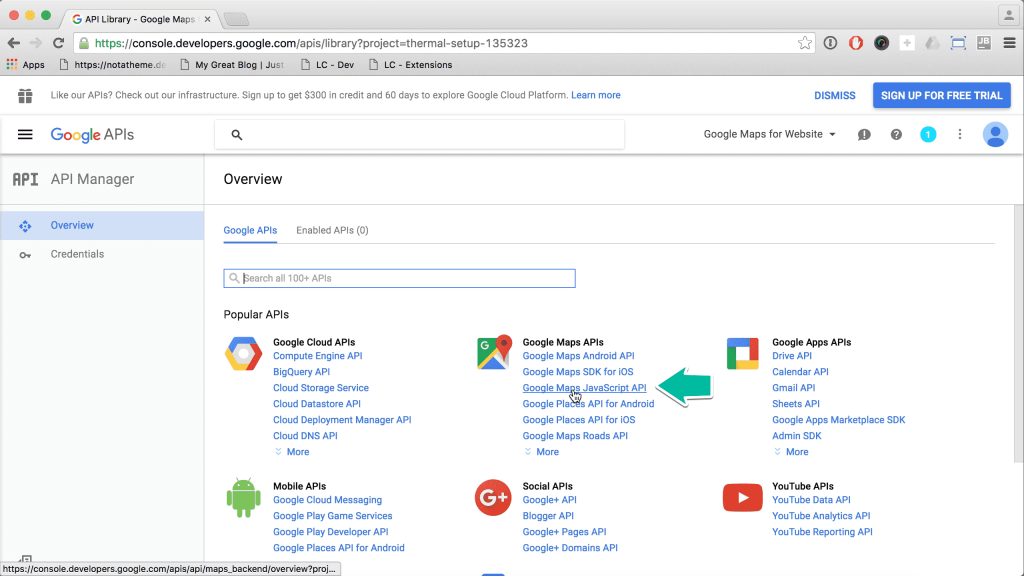
- On the Google Maps JavaScript API page you need to click on Enable button.
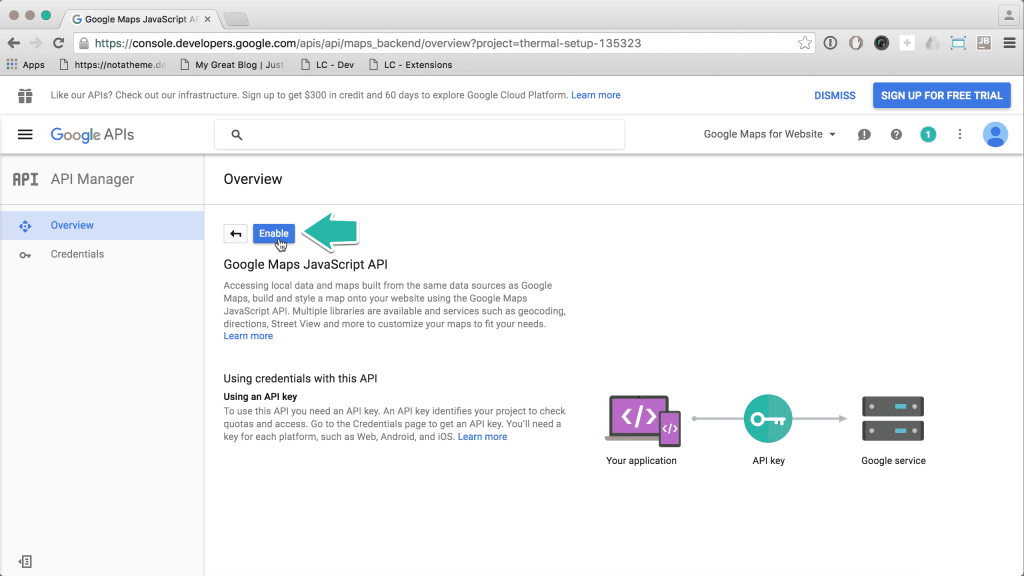
- You will see the notice asking to create credentials for the project. Click on the Go to Credentials button.
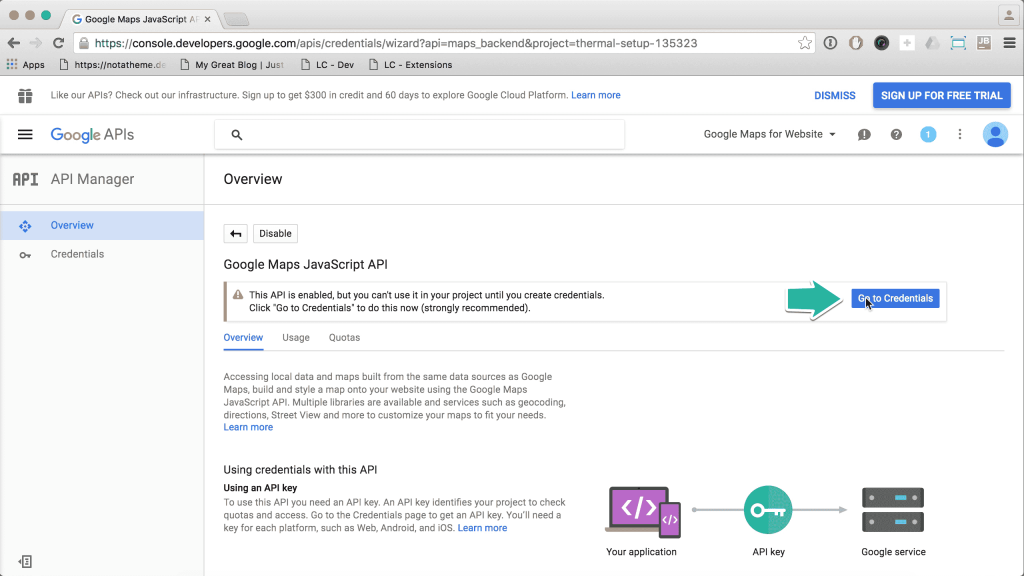
- Select the Web browser (JavaScript) option in the second dropdown and click on the blue button.
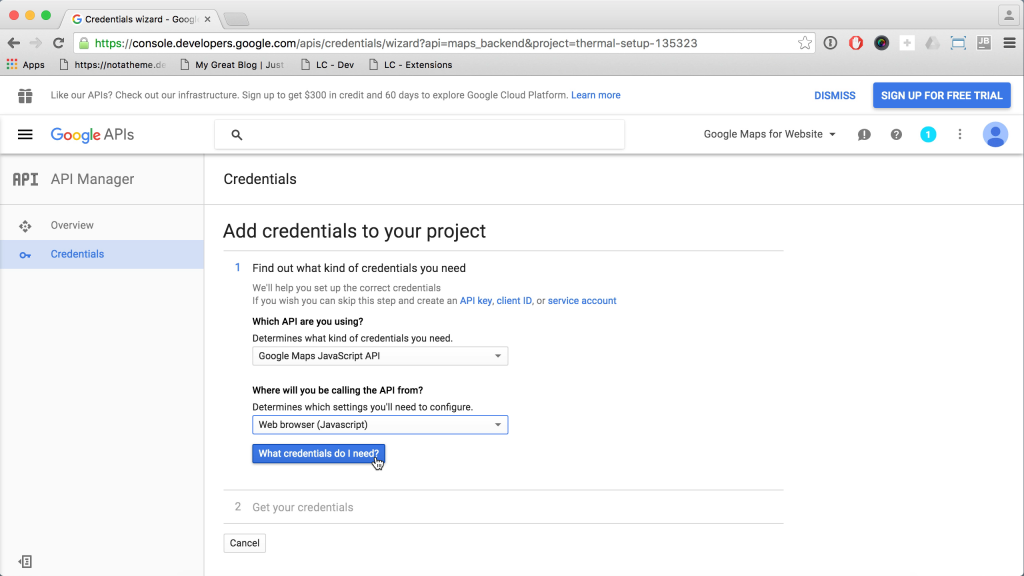
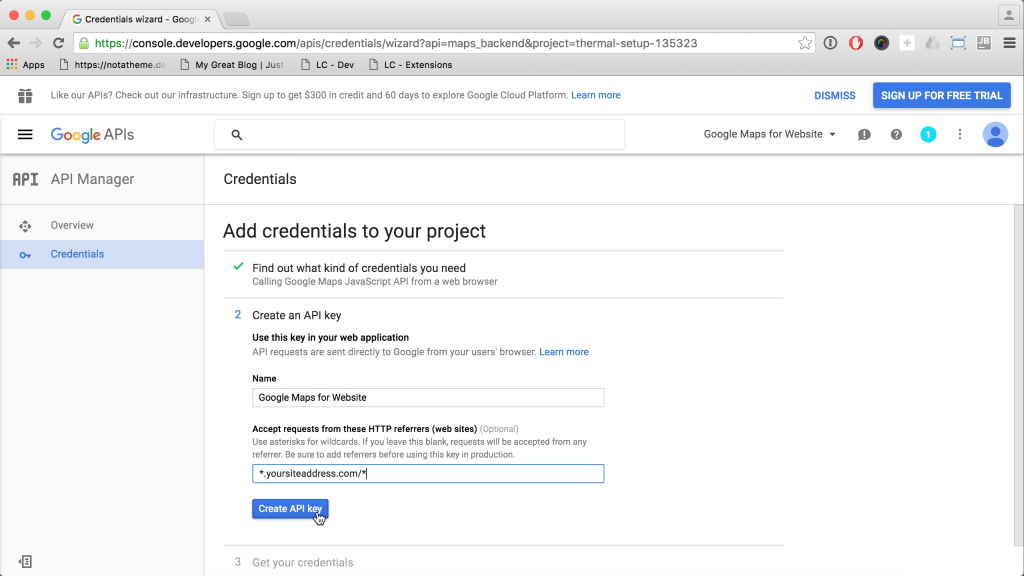
- Now give any name to the keys and fill the website's field with your site address. You can enter the website URL as you would in a browser, or use asterisks for wildcards, as shown in the screenshot. After all the filed filed, click on Create API key button.
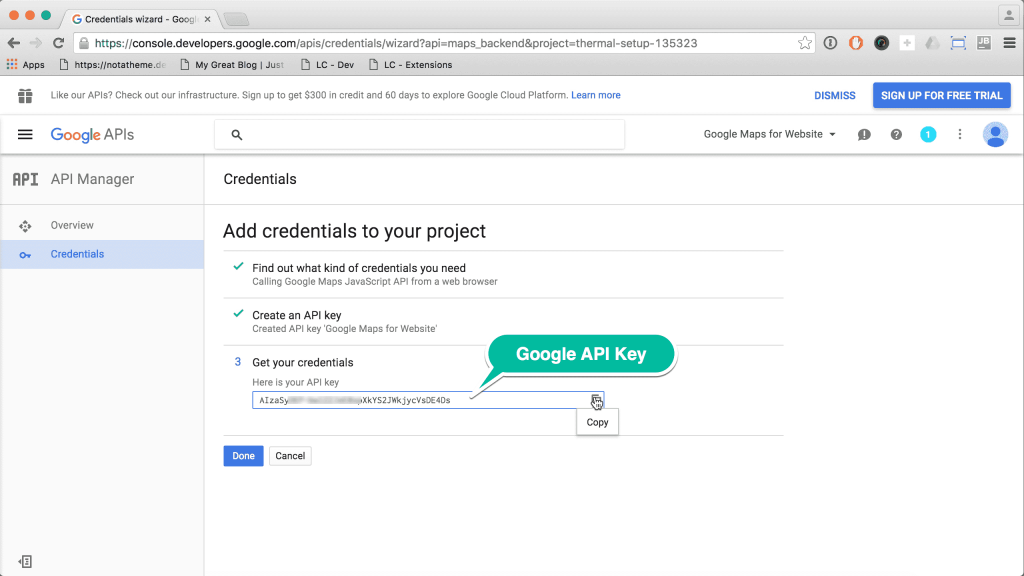
- Finally, Google will provide you with an API key that you can copy and use in the Google Maps module on your website.
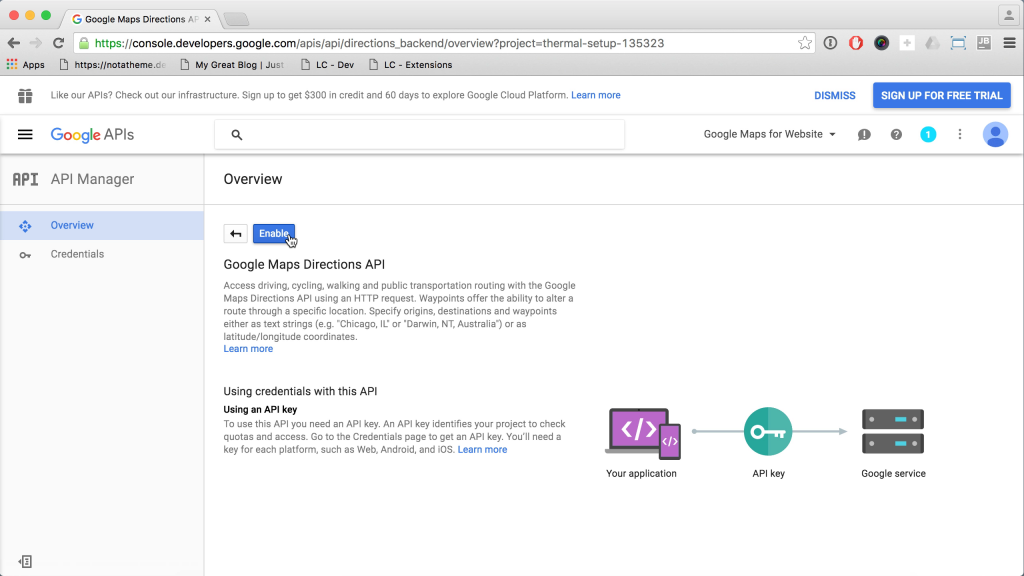
- Before you go, let's do one more thing: activate the Google Directions API as well. For now, we do not use this feature, but it's good to have it active in the future. Go back to the Overview page and click on the Google Maps Directions API link.
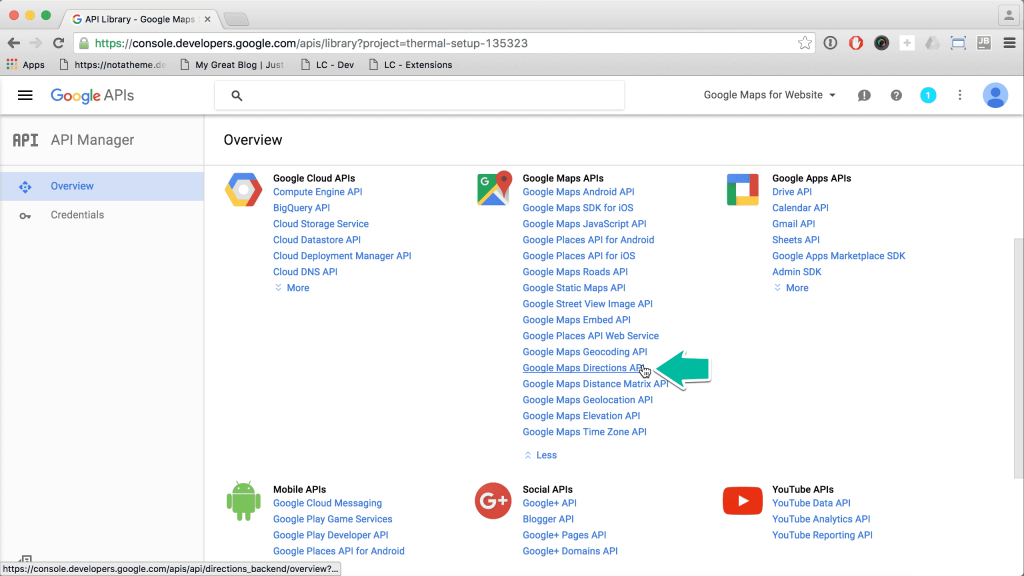
- On the new page, click the Enable button.